Accessibility Audit for a Nonprofit Health Website
Making an aging-and-disability service usable for the people it serves
I audited ConnectWI — a Wisconsin nonprofit's health-resource site — against WCAG 2.1 AA using automated scans, keyboard testing, and screen-reader evaluation. Across 13 pages I documented and prioritized 24 issues, from keyboard traps in the donation flow to 100+ low-contrast text instances — barriers that directly affect the site's core audience.
Client
Wisconsin Coalition for Social Connection
My Role
Accessibility & UX Evaluation
Testing
Documentation
Reporting
Tools
WAVE (web + extension)
Keyboard testing
VoiceOver
Standards
WCAG 2.1 AA
Section 508
ADA Title II
Timeline
Mar - Aug 2026
Team
Independent Project
Problem
ConnectWI exists to reduce loneliness and isolation among older adults and people with disabilities. Yet the audit found that the site's own accessibility gaps put up barriers for that same audience:
Keyboard-only users couldn't reliably complete key tasks like donating or submitting forms.
100+ instances of low-contrast text made content hard to read for older adults and low-vision users.
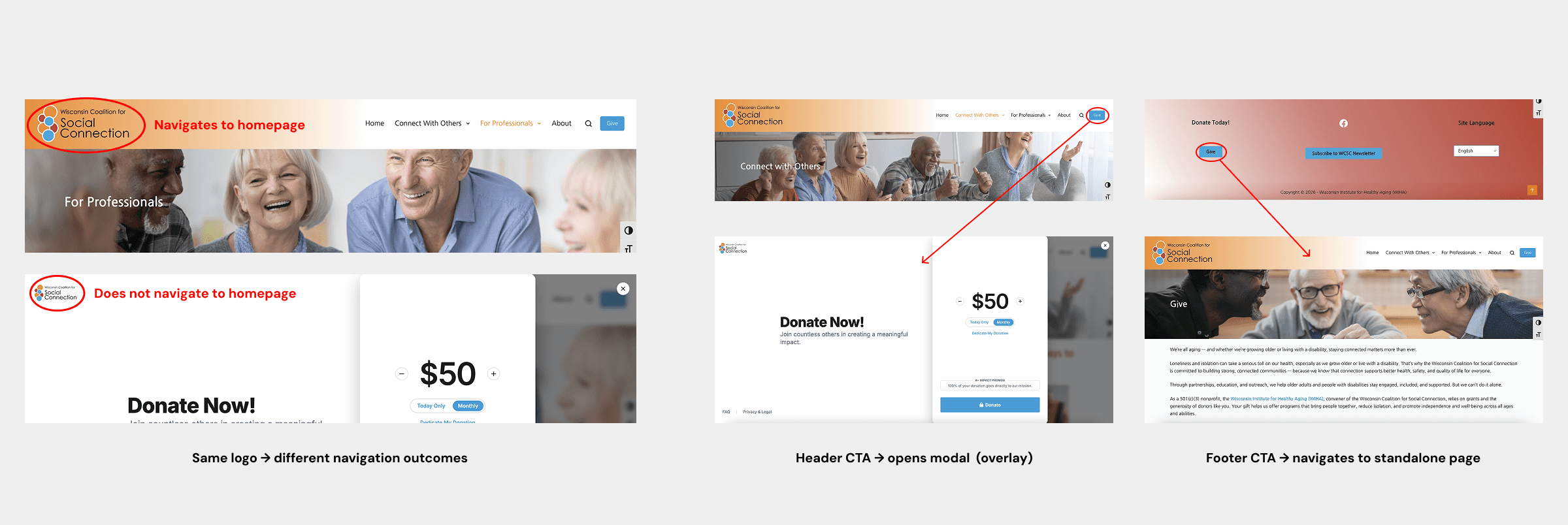
Inconsistent interaction patterns — a "Give" button that behaves two different ways — increased cognitive load and eroded trust.
When the people most likely to rely on assistive technology are the site's target users, accessibility isn't a compliance checkbox — it's mission-critical.
Scope & Testing Coverage
This audit combined automated scanning with manual testing across the site.
Automated – WAVE (web + extension)
I used WAVE in two modes. The web scanner swept all 13 public pages for issues on static content. The Chrome extension lets me reach interactive states the web scanner can't trigger — the search modal, the donation ("Give") modal, the "For Professionals" dropdown, and forms nested inside modals. This meant testing states, not just pages.
Manual
Keyboard Navigation
Tab-based testing across the full site — reachability, focus order, and interaction behavior.
Screen reader (VoiceOver / Safari)
Focused on the homepage and donation flow — content structure, navigation clarity, and focus behavior.
Note: I concentrated screen-reader testing on high-priority flows rather than every page. A fuller audit would add NVDA/JAWS and testing with real users — I've flagged that as a next step.
Approach
Balancing speed, real user behavior, and consistency.
Step 1 - Automated Scanning
Quickly surfaces recurring issues at scale (contrast, empty links, structure)
Step 2 - Manual Testing
Reveals interaction barriers automated tools miss — keyboard traps, focus loss, unpredictable behavior
Step 3 - Cross-Page Validation
Checks that patterns behave consistently, reducing cognitive load
How I prioritized
I rated every issue on severity (how badly it blocks a task) and user impact (how central the affected users are to this audience), then mapped each to a WCAG 2.1 success criterion. That produced a clear High / Medium / Low priority for every issue — the backbone of the report I handed the client.
Key Findings
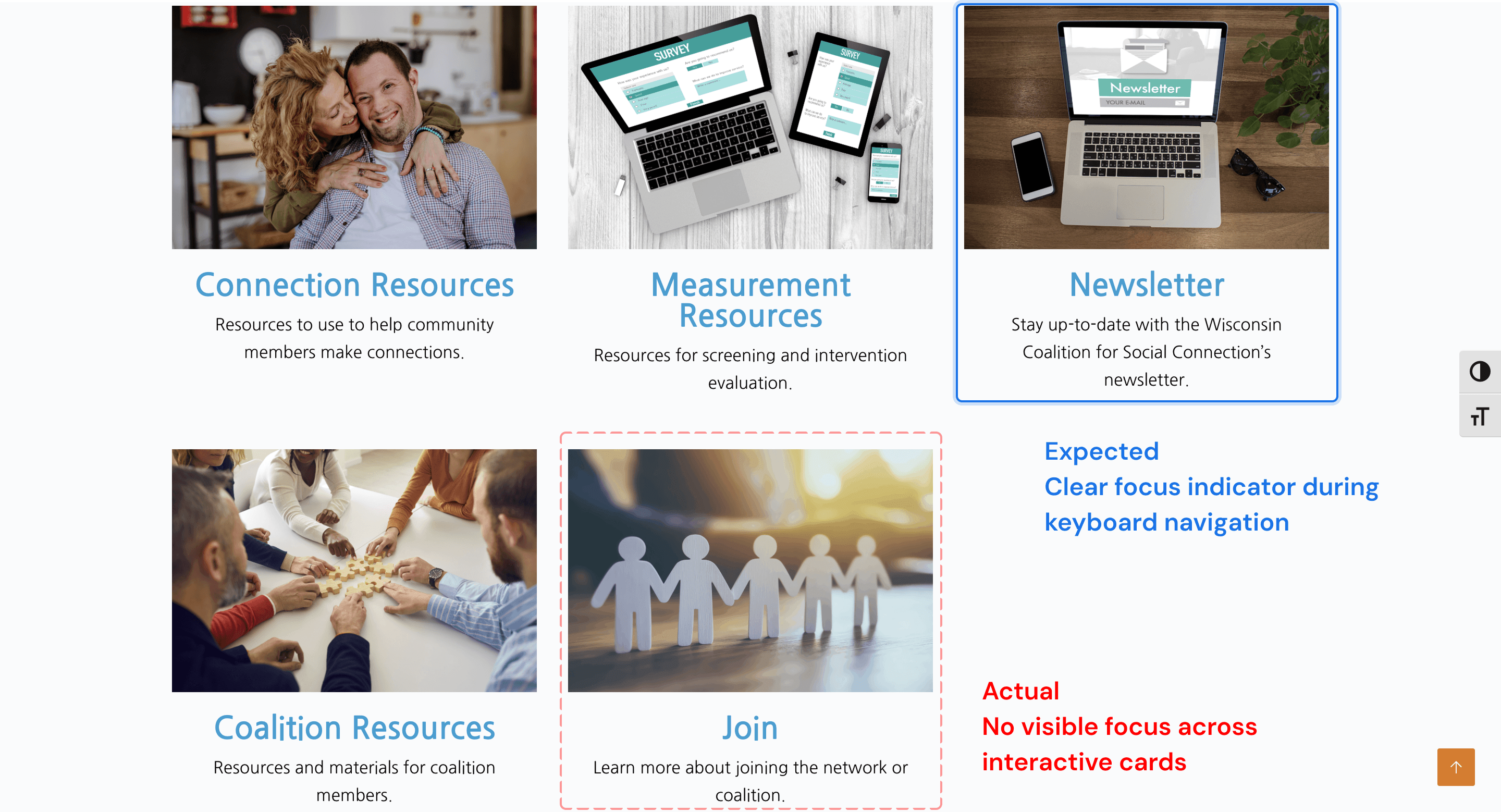
Critical flows are inaccessible without a mouse
Keyboard users can't reliably track their position or complete key tasks, making exploration frustrating and donation difficult. (WCAG 2.4.3, 2.4.7)
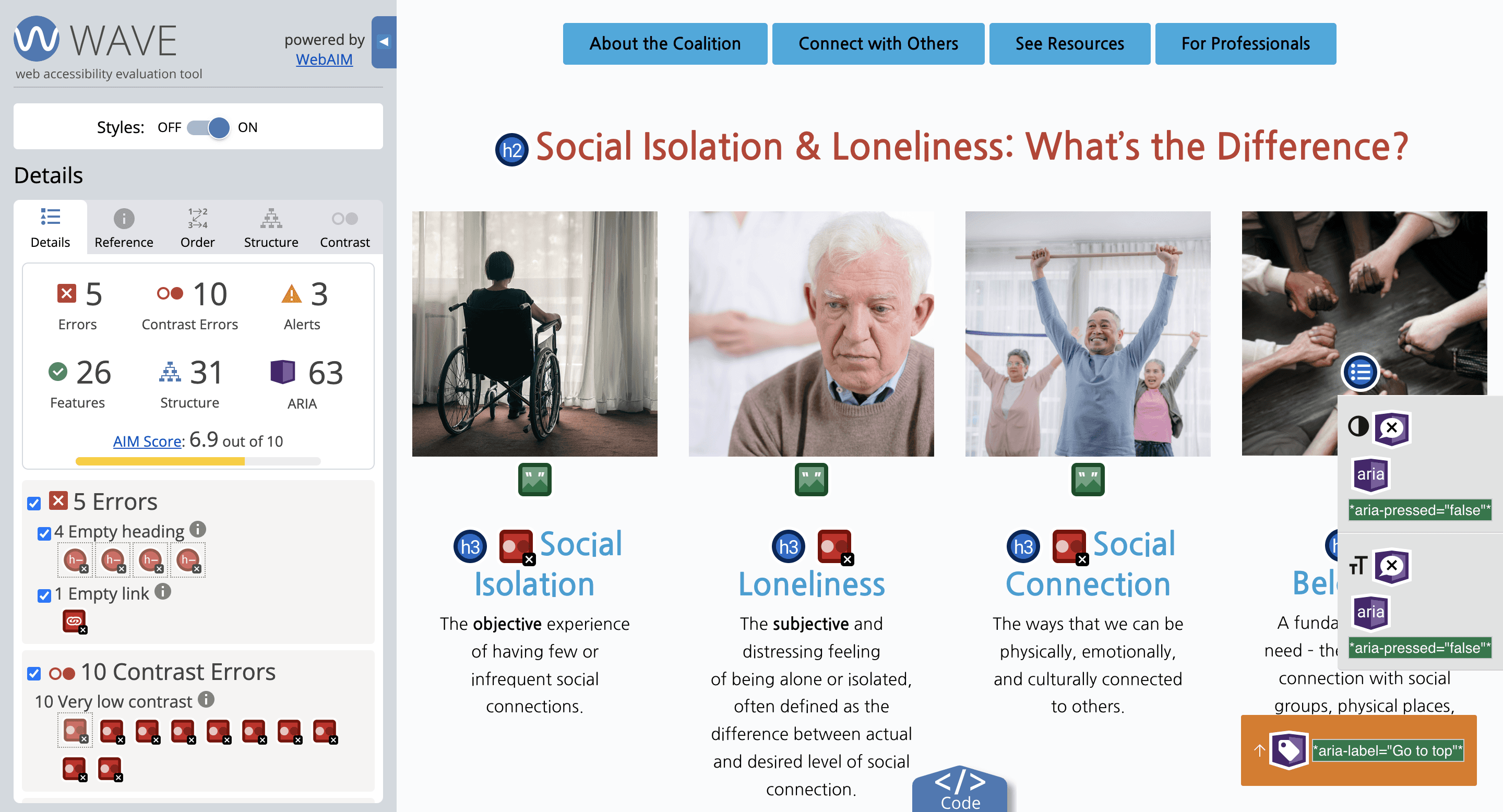
Text readability is compromised for older users
100+ low-contrast instances across the site make key information hard to read — for the exact audience the site serves. (WCAG 1.4.3)
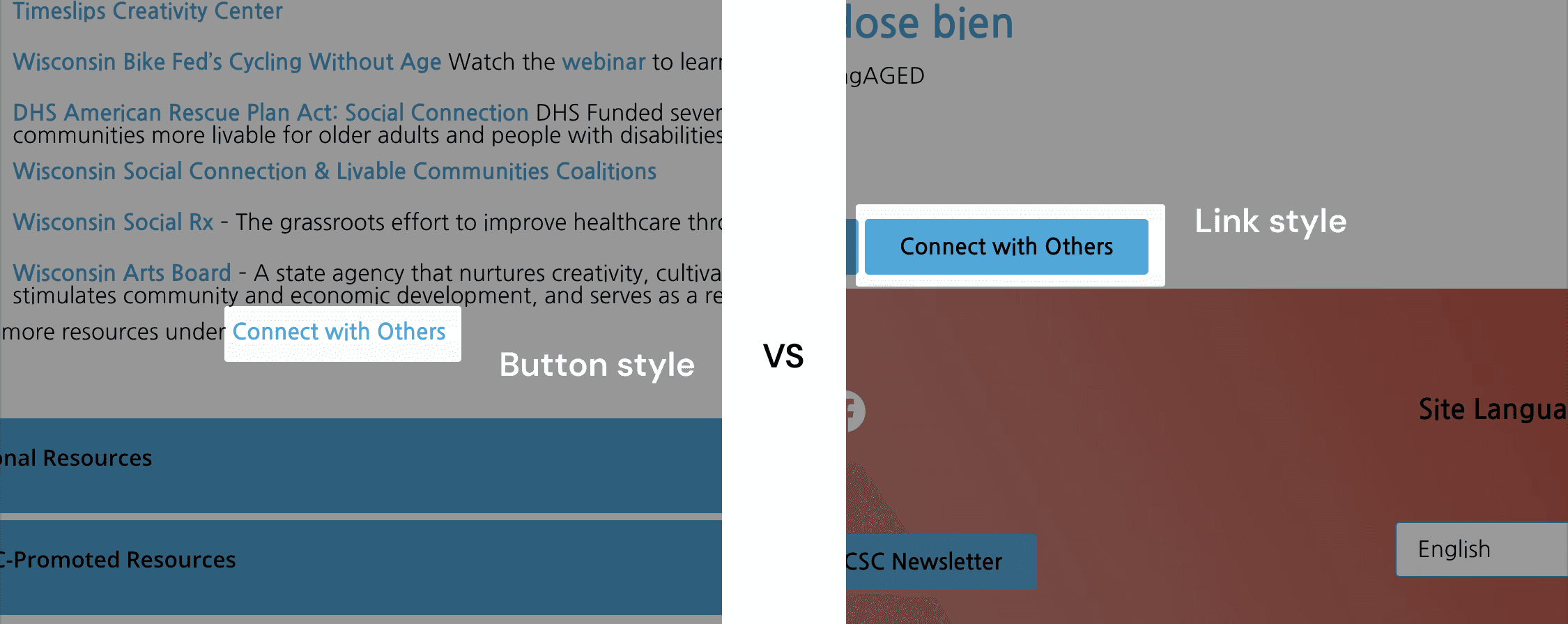
Inconsistent interaction patterns increase cognitive load
Identical elements behave differently, forcing users to relearn the interface and slowing task completion. (WCAG 3.2.3, 3.2.4)
These issues span every layer of the experience — navigation (keyboard), perception (contrast), and behavior (consistency).
Deep Dive
Low Contrast Undermines the Core Audience
Context
The site is content-heavy and serves older adults and people with low vision.
Issue
100+ instances of text falling below the WCAG minimum contrast ratio (4.5:1), concentrated on content pages like "Connect With Others" (28 on one page alone).
Impact
Reading becomes effortful or impossible for the very users the site is designed to reach.
Why it matters
This is the highest-volume issue in the audit and one of the cheapest high-value fixes — a defined color-token pass resolves most of it. (WCAG 1.4.3 Contrast Minimum)

Focus Breaks Down in the Donation Flow
Context
The donation flow uses modal overlays and nested interactions to guide users through contribution steps.
Issue
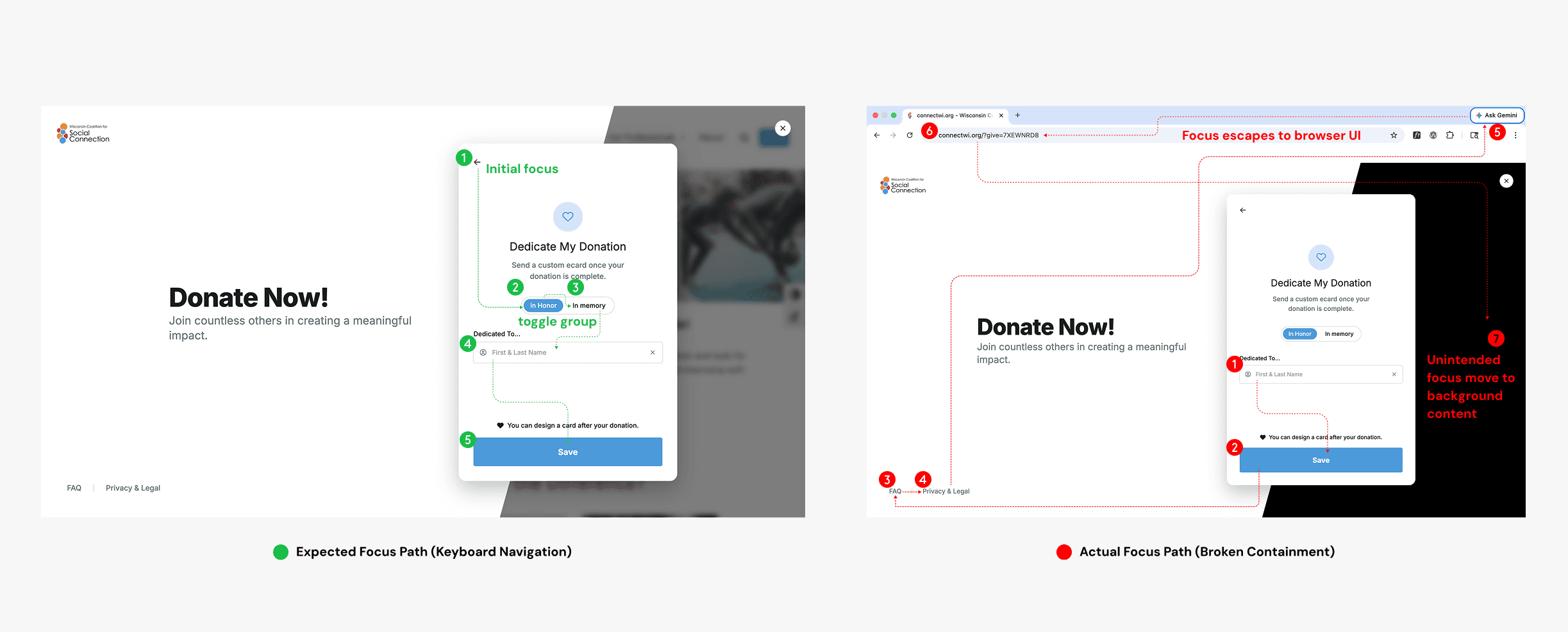
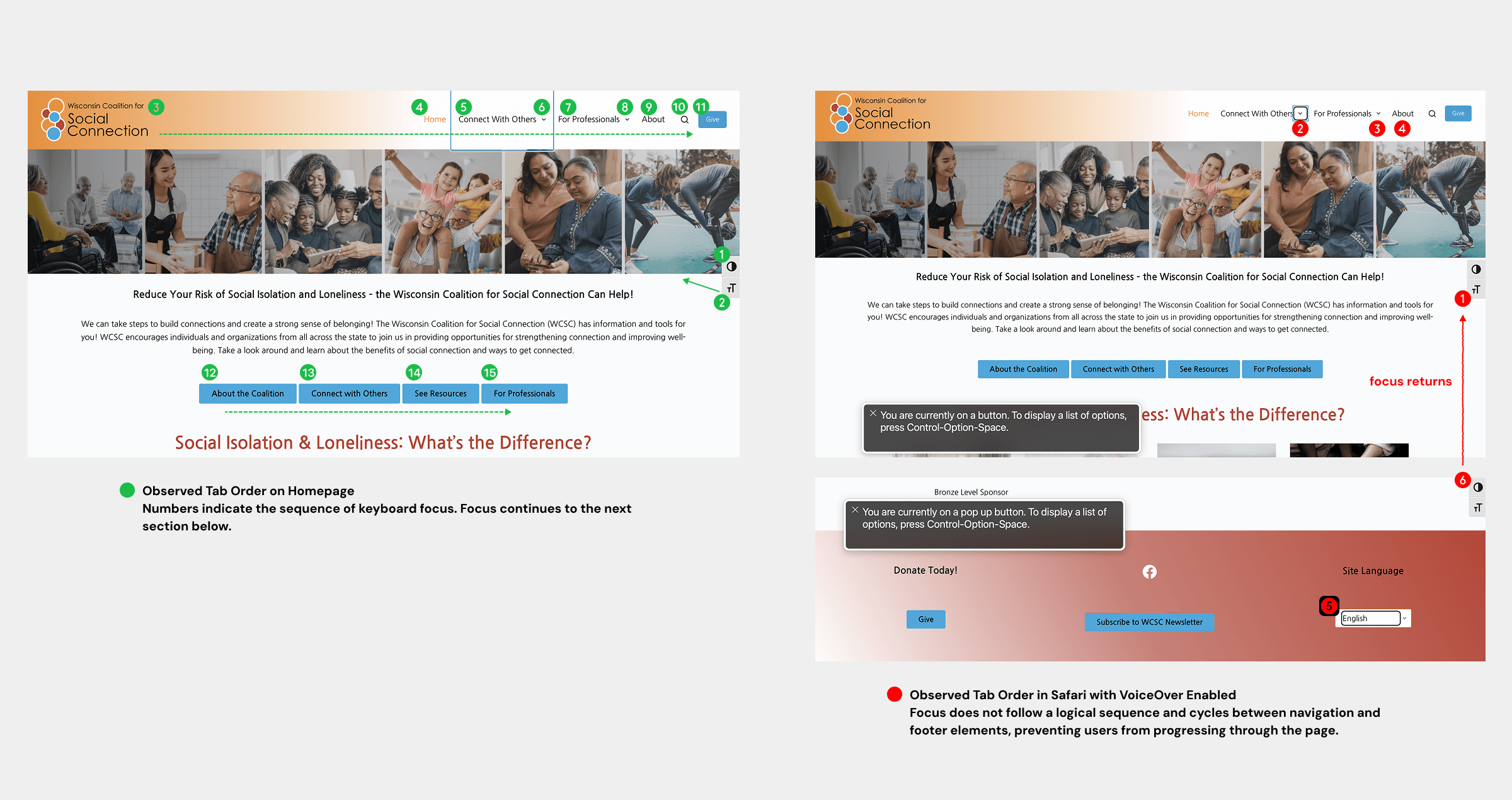
When the modal opened, focus stayed on the background page instead of moving into it. In the nested "Dedicate My Donation" step, focus moved unpredictably between modal content, background elements, and even the browser UI, with no clear return path.
Impact
Users couldn't track their position, leading to confusion and loss of control during a key interaction.
Why it matters
For keyboard users this can make a donation impossible; more broadly it reflects a breakdown in interaction reliability across the system. (WCAG 2.4.3 Focus Order)
Navigation Behavior Is Inconsistent Across the Site
Context
The site relies on common patterns (logos, links, buttons) to move users between pages.
Issue
Identical elements lead to different destinations (the logo), similar links open inconsistently (same tab vs. new tab), and the same "Give" action is a modal in the header but a separate page in the footer.
Impact
Users can't predict navigation outcomes, which breaks their mental model and reduces trust.
Why it matters
Predictability is foundational; inconsistency raises cognitive load and hesitation, especially for older adults and screen-reader users. (WCAG 3.2.3, 3.2.4)
Testing & Discovery
Step 1 - Initial testing
Standard keyboard (Tab) testing suggested most elements were reachable and navigation looked functional.
Step 2 - Screen reader testing
With VoiceOver, results were inconsistent — some passes were clear, others confusing. A key factor: VoiceOver behaved differently in Safari vs. Chrome. VoiceOver is built for Safari, so the Chrome pairing is inherently less reliable — a reminder that the testing environment shapes what you see.
Step 3 - Investigation
The inconsistency pointed to the underlying focus order and structure, which assistive tech exposed by removing the visual cues sighted users rely on to compensate.
Step 4 - Resolution
I reported the issues to the team. After they addressed the underlying WCAG issues, I re-tested the four main pages, and navigation now behaves reliably in Chrome.
Conclusion
This is the gap between visual usability and accessibility robustness — the kind of issue automated tools miss. Next step: a fuller re-test across Safari + VoiceOver and a second screen reader (NVDA/JAWS) to confirm consistency across environments.
Outcome & Deliverables
What I delivered
A prioritized issue log — 24 issues, each with location, user impact, severity, WCAG criterion, and a concrete fix.
A severity + impact framework that turns findings into clear High / Medium / Low priorities.
A remediation roadmap the WordPress team can work through in order.
Quick wins fixed during the engagement
Several issues were resolved collaboratively as I audited — empty headings on the homepage, a broken heading level under "Donate Today," and a hover-only "For Professionals" dropdown that keyboard users couldn't reach.
Value
The audit is projected to save the nonprofit roughly $4,212 in professional-services cost — and, more importantly, removes barriers standing between their target audience and the health resources meant to reach them.
Recommendations
🔴 High priority
Fix focus management in modals and forms — move focus into modals on open, contain it, and return it on close; move focus to success messages after submit. (2.4.3, 3.3.1)
Fix keyboard focus order to follow the DOM and visual reading sequence; prevent focus loops between nav and footer; avoid unnecessary tabindex. (2.4.3)
Raise text contrast to 4.5:1 site-wide via a defined color-token pass. (1.4.3)
🟠 Medium priority
Add visible focus indicators to all interactive elements, including content cards and the language dropdown. (2.4.7)
Standardize link & button behavior — consistent destinations, consistent same-tab/new-tab rules, with clear "opens in a new window" cues for external links. (3.2.3, 3.2.4)
Associate labels with all form inputs. (3.3.2)
🟡 Low priority
Replace vague link text ("here," "click here") with descriptive labels; remove redundant links. (2.4.4)
Remove outdated content and reorder time-based sections newest-first.
Validate across environments — include Safari + VoiceOver and Chrome + NVDA in QA, testing both keyboard-only and screen-reader-assisted paths.
Reflection
Tools ≠ truth.
Automated scans find issues at scale, but they can't feel a keyboard trap or navigation confusion. The most serious barriers here surfaced only through manual testing.
Accessibility is about behavior, not just compliance.
Passing WCAG matters, but the real goal is letting users complete tasks independently and confidently.
Communication matters.
Translating technical findings into clear, prioritized, actionable recommendations is what makes an audit useful to a non-technical, resource-constrained nonprofit.
Know the ceiling of a solo audit.
One evaluator with one screen reader catches a lot but not everything. Next, I'd add NVDA/JAWS and test with real older-adult users. And I'd rebalance my time — less re-scanning of static pages, more testing of real task flows, which is exactly where the barriers turned out to live.